Prayer Times
Upload your prayer timetable via CSV or edit times directly in the dashboard.
Prepare your CSV or Excel file
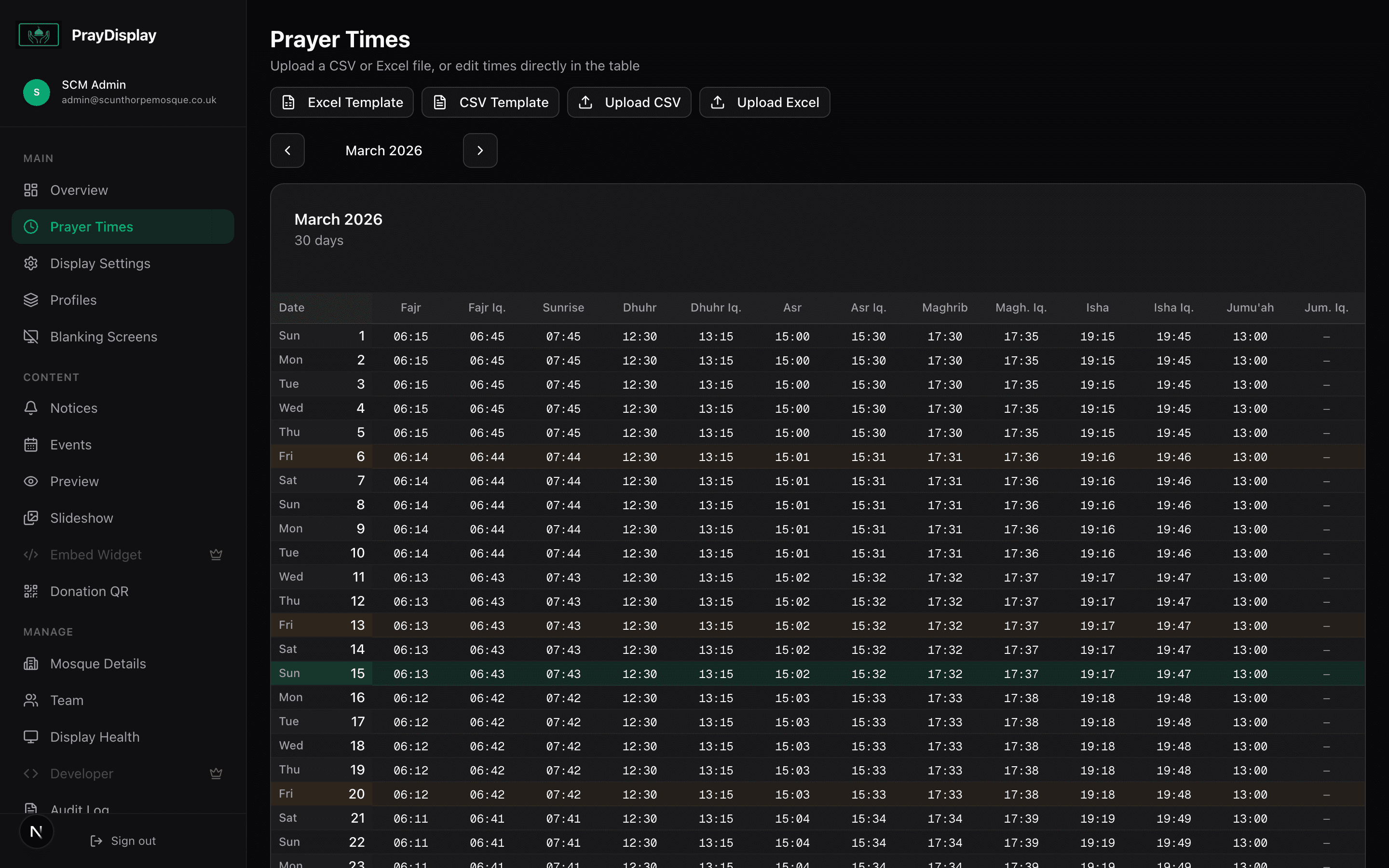
Create a CSV or Excel file with columns for each prayer time. You can download a template from the dashboard using the 'Excel Template' or 'CSV Template' buttons. Times should be in HH:MM format and dates in YYYY-MM-DD format.
Upload via the dashboard
Navigate to 'Prayer Times' in the sidebar. Click 'Upload CSV' or 'Upload Excel' and select your file. PrayDisplay will parse and validate the data, then import all rows. You can upload a whole year at once.
Edit times inline
You can also edit prayer times directly in the spreadsheet-style table. Click on any cell to modify the time. Today's date is highlighted in green. Use the month navigation arrows to switch between months. Changes save automatically.
See times on the live display
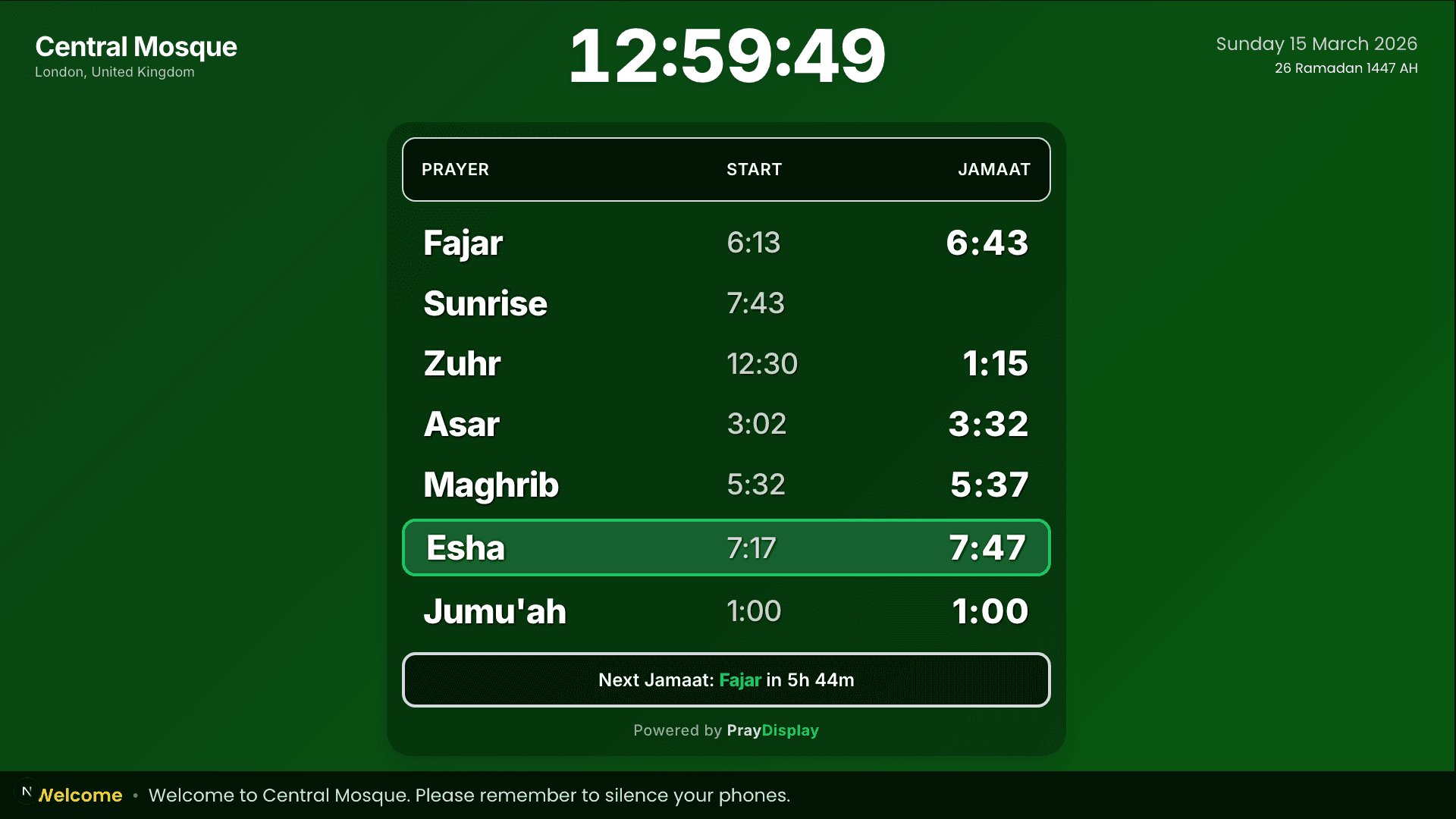
Once uploaded, prayer times appear immediately on your live display. The display highlights the current/next prayer and shows a countdown to the next jamaat.
Pro tip: Upload your entire year's timetable at once! PrayDisplay will automatically show the correct times for each day. If you need to update a single day, just click on the cell in the table to edit it inline.