TV Setup
Connect your TV to show your mosque's prayer display with automatic updates.
Get your display URL
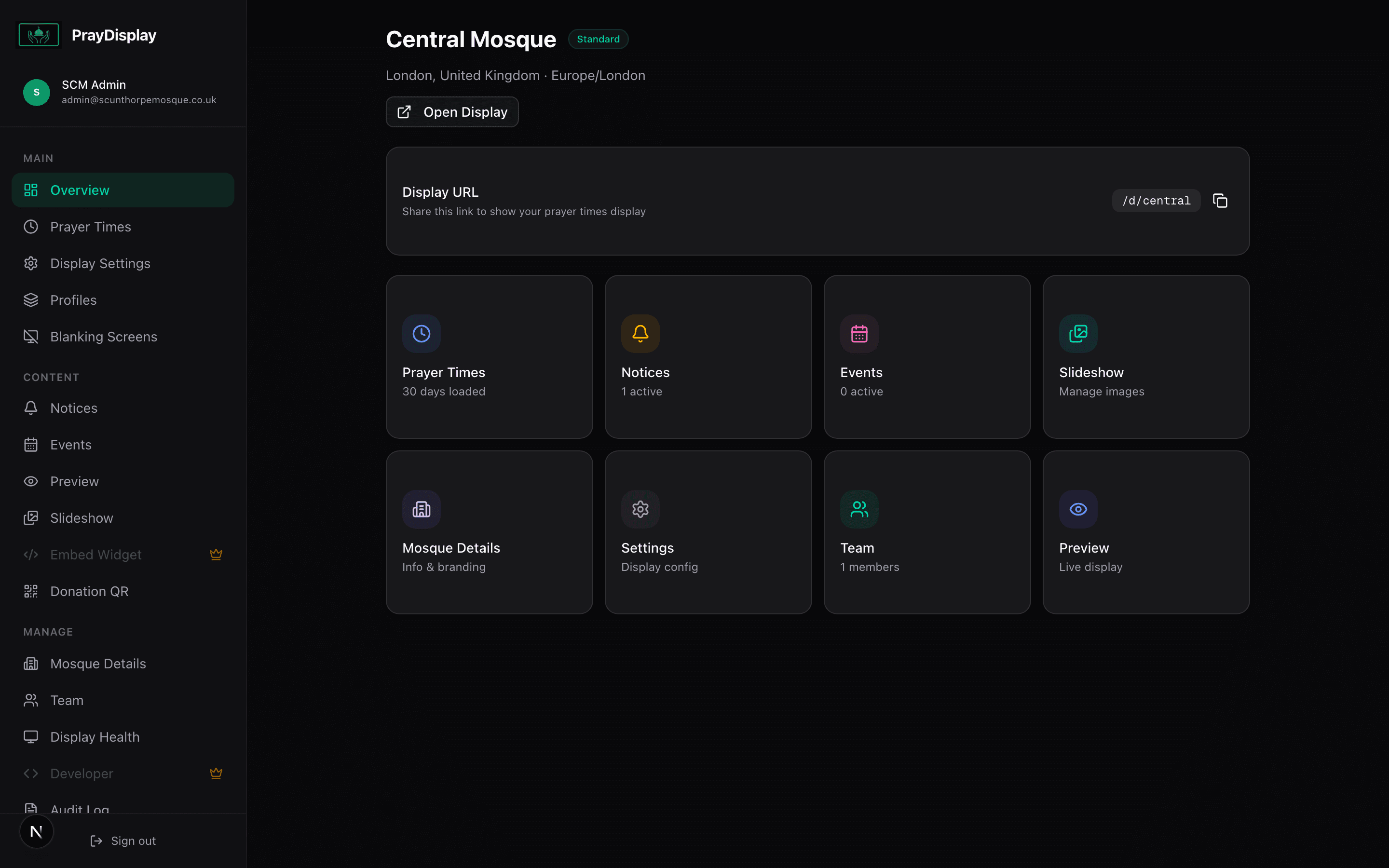
In your mosque dashboard, find the 'Display URL' section on the Overview page. Your unique URL looks like: praydisplay.co.uk/d/SCM. Copy this URL — you'll need it for the TV.
Open on your TV browser
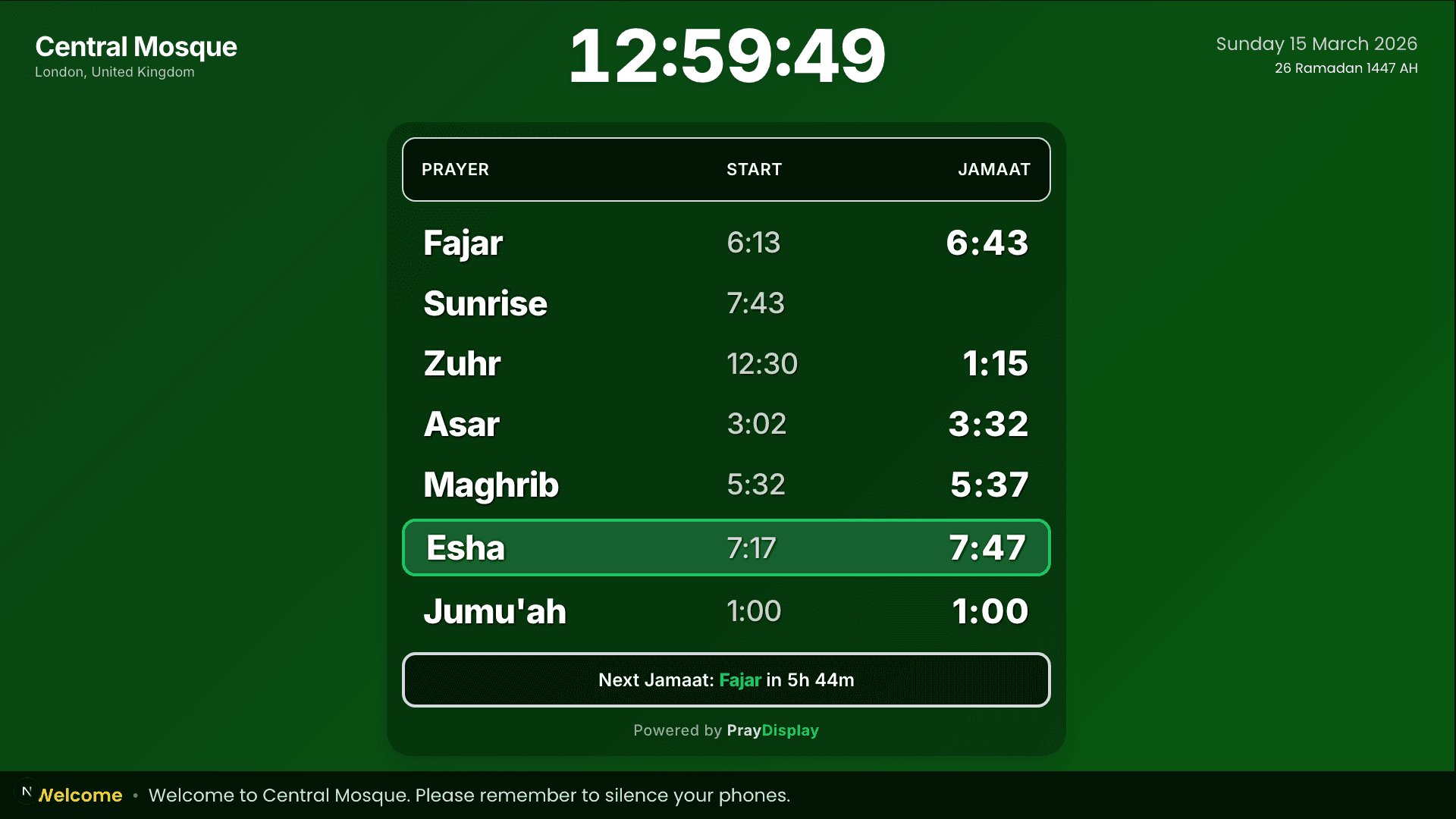
On your Smart TV, Amazon Fire Stick, Chromecast, or any device connected to your TV — open the web browser and navigate to your display URL. The display automatically detects the screen orientation (portrait or landscape).
Portrait mode
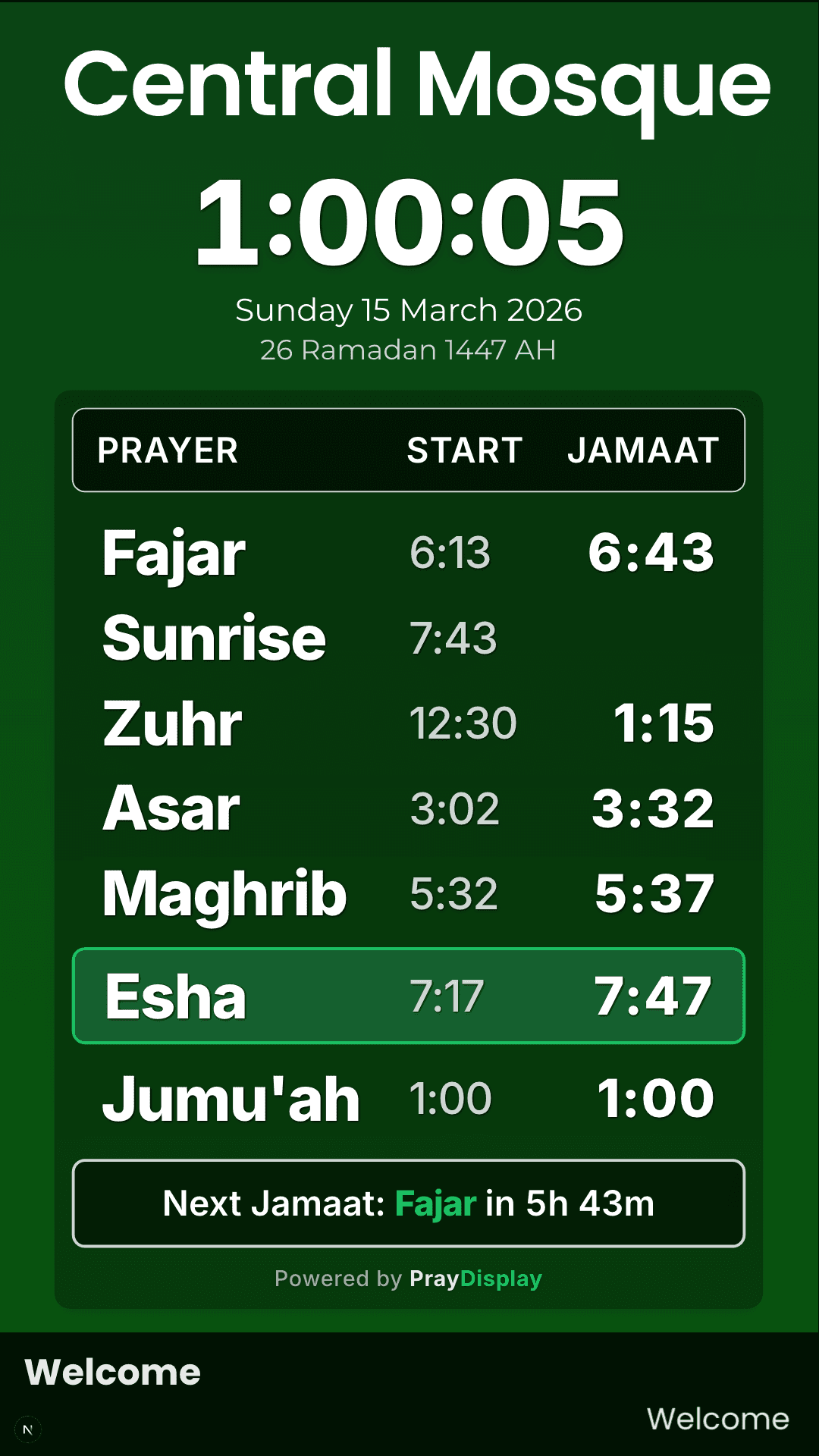
Rotate your TV or use a portrait-mounted screen. The display automatically adapts to show a vertical layout optimised for portrait orientation.
Set to full screen
Press F11 (on a computer) or use the TV's fullscreen option to remove browser chrome. The display is designed to fill the entire screen. For the best experience, keep the browser open 24/7.
Recommended hardware: A basic Amazon Fire TV Stick (£30-40) works perfectly. Plug it into your TV's HDMI port, open the Silk or Firefox browser, navigate to your display URL, and you're done. The display updates automatically forever.
Offline support
PrayDisplay caches your data locally. If the internet drops temporarily, the display continues showing the last known prayer times with a small offline indicator. It will automatically reconnect when the internet returns.